
How to buy with LoloBuy
Follow a product from our spreadsheet through LoloBuy order payment, warehouse inspection, parcel consolidation and delivery. The guide uses screenshots of our spreadsheet, public LoloBuy pages and the official tutorial, plus a saved warehouse inspection photo.
Read LoloBuy’s official buying tutorial
From a Weidian link to your parcel
Find the listing and open it in LoloBuy
Enter a product name, Weidian item ID or seller link in our spreadsheet and choose Apply filters. Open a result, compare its seller photos and choose Buy on LoloBuy. You can also paste a seller link into the official LoloBuy homepage.
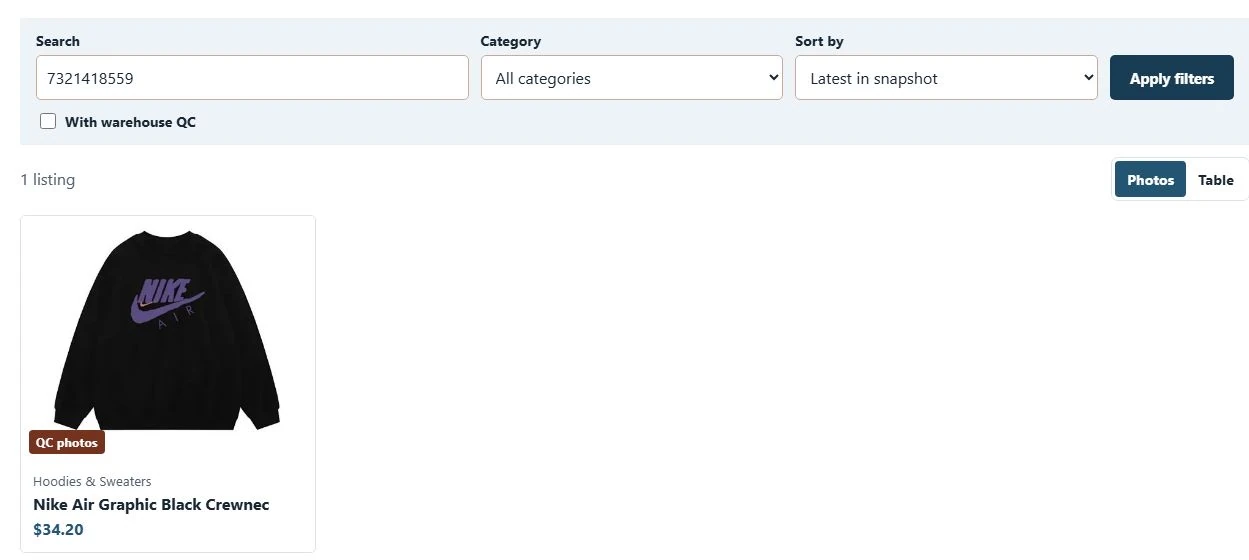
Our spreadsheet after searching for Weidian item 7321418559. Open the matching card to reach the purchase link. Confirm your option before paying
On the LoloBuy product page, check the loaded seller item, size, colour and quantity. Compare the current item price and any domestic freight. If the page shows a zero price, an empty option list or a mismatched item, try the original seller link before continuing.
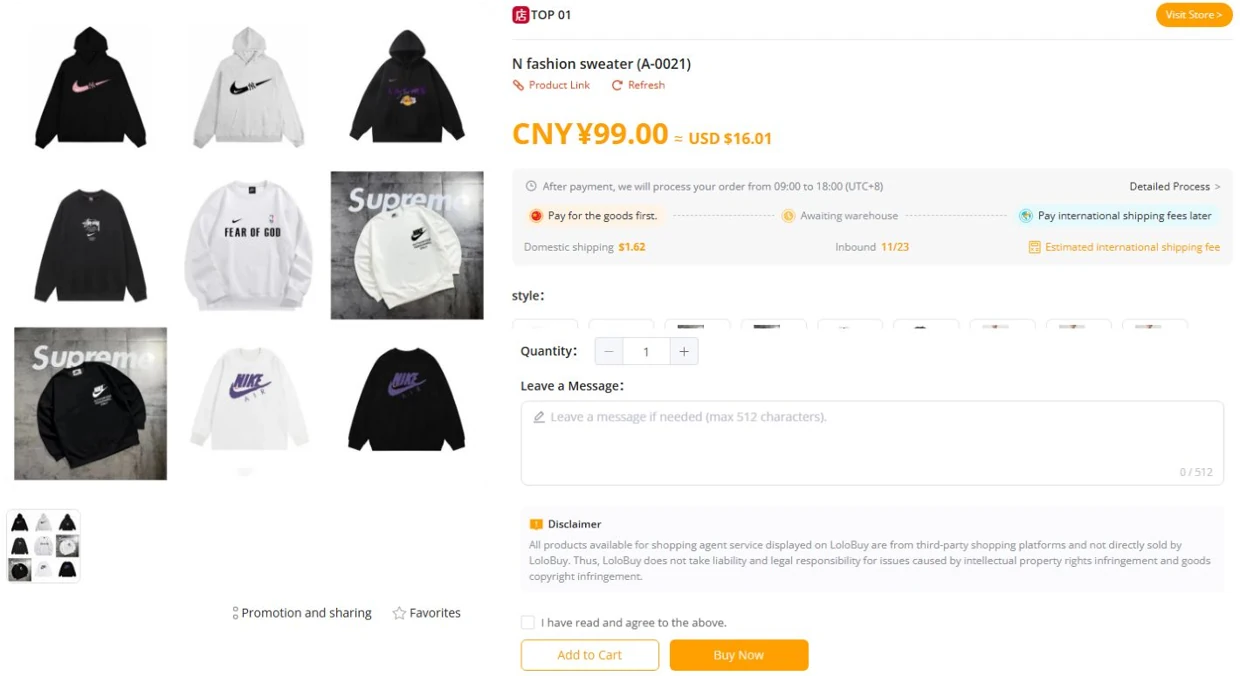
LoloBuy product page with the selected item, available options and price. Official page Pay for the order and check warehouse intake
The LoloBuy product screen separates the item payment from international freight. Review the order total, including the seller’s domestic shipping charge, before paying. After payment, follow the order in your account until the seller ships and the warehouse receives it. Keep the order number so support can distinguish a seller delay from warehouse processing.
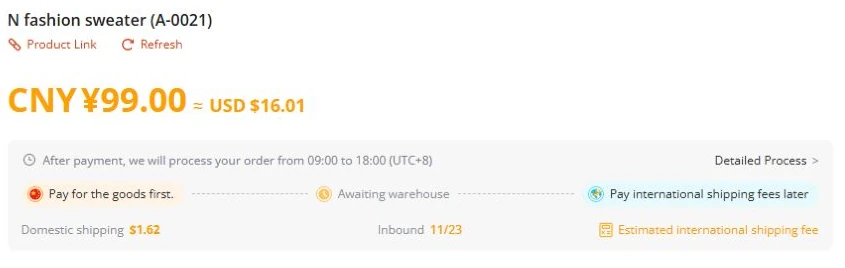
LoloBuy product screen showing item payment, warehouse intake and international freight as separate stages. Official page Inspect your warehouse QC photos
Once the item arrives, open My LoloBuy → My Warehouse to check your inspection photos. Compare the variant, size label, colour and visible condition against your order. Use the order’s after-sales options for any discrepancy before submitting your parcel.
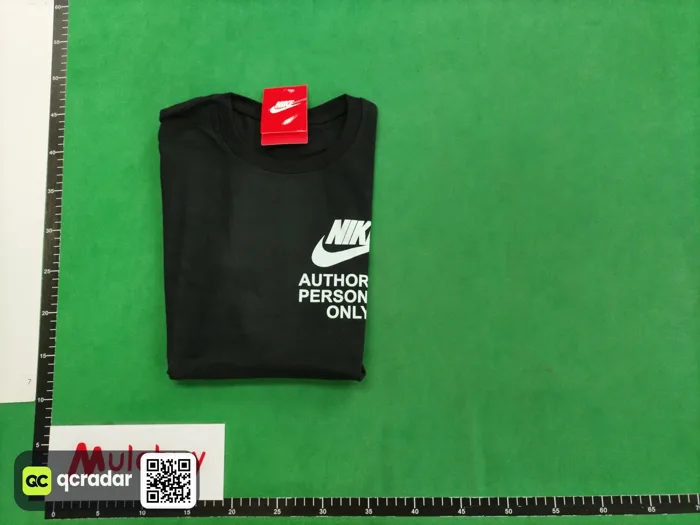
Saved warehouse QC example for Weidian item 7321418559. Your own photos appear in your LoloBuy account. Official page Resolve QC issues before shipping
If the warehouse photos show a wrong variant, missing piece or damage, save the relevant photo and order number. Ask LoloBuy support or use the available after-sales option for that order. Check the deadline, eligibility and any fee before requesting a return or exchange. If a detail is unclear, specify the exact angle or measurement you need.
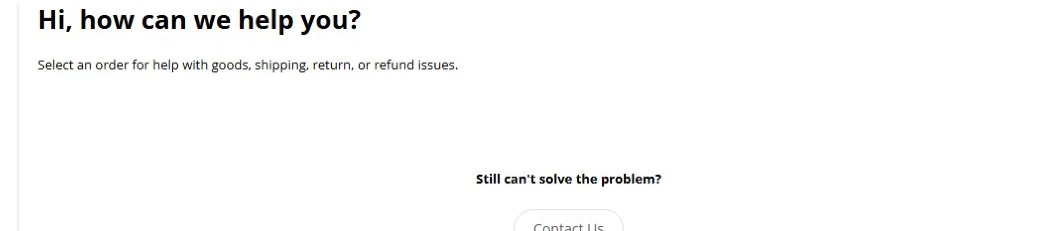
LoloBuy’s public Help Center. Sign in and select the affected order to ask about returns or refunds. Official page Estimate your international freight
Open Freight estimate on LoloBuy. Choose the destination and enter weight in grams. Add packed dimensions in centimetres and the product category when available, then select Query. Compare available routes, including weight rules and product restrictions. Use the warehouse’s final packed figures to check the payable amount.

LoloBuy Shipping Fee Estimation form with destination, weight and parcel dimensions. Official page Combine eligible items and submit a parcel
In My Warehouse, select the inspected items you want to ship together and choose Submit for Delivery. Check storage deadlines, the recipient’s address, parcel contents and packing options. Review the route, terms and estimated freight deposit, then check the final charge after packing.
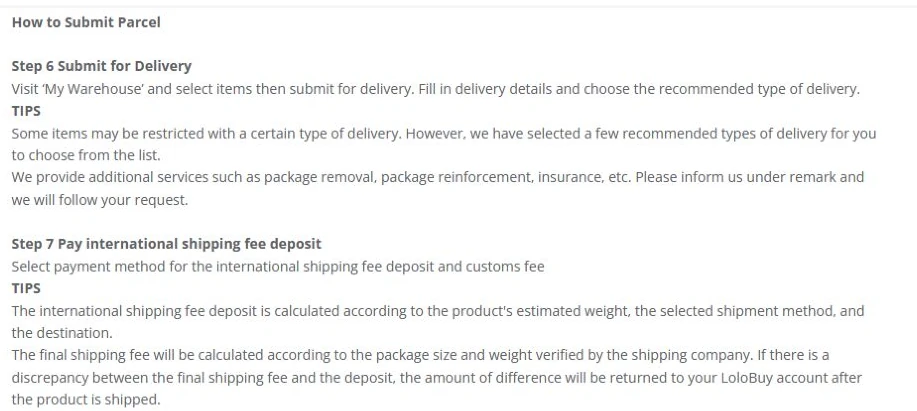
LoloBuy’s public tutorial covers warehouse item selection, parcel submission and the estimated freight deposit. Official page Track your parcel
After dispatch, open My LoloBuy → Parcels for the carrier and tracking number. If delivery is delayed, compare the parcel status in LoloBuy with the carrier’s updates.
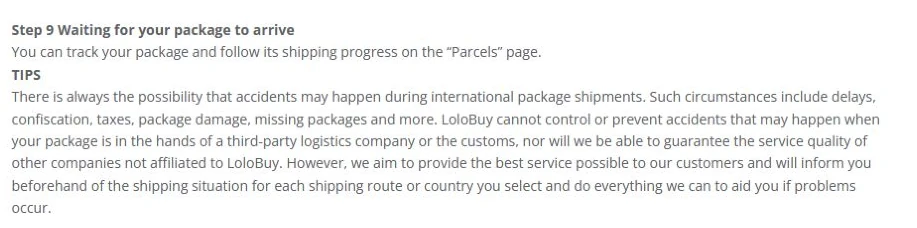
LoloBuy’s public tutorial shows where to track a parcel in your account. Official page Inspect your delivery and confirm receipt
Check the contents and condition when the parcel arrives. If everything matches your order, confirm receipt in My LoloBuy → Parcels. For missing or damaged goods, keep the packaging, shipping label and photos, then check your route’s claim procedure and deadline.

LoloBuy’s public tutorial shows where to confirm receipt or request after-sales help. Official page